Build the timers you need
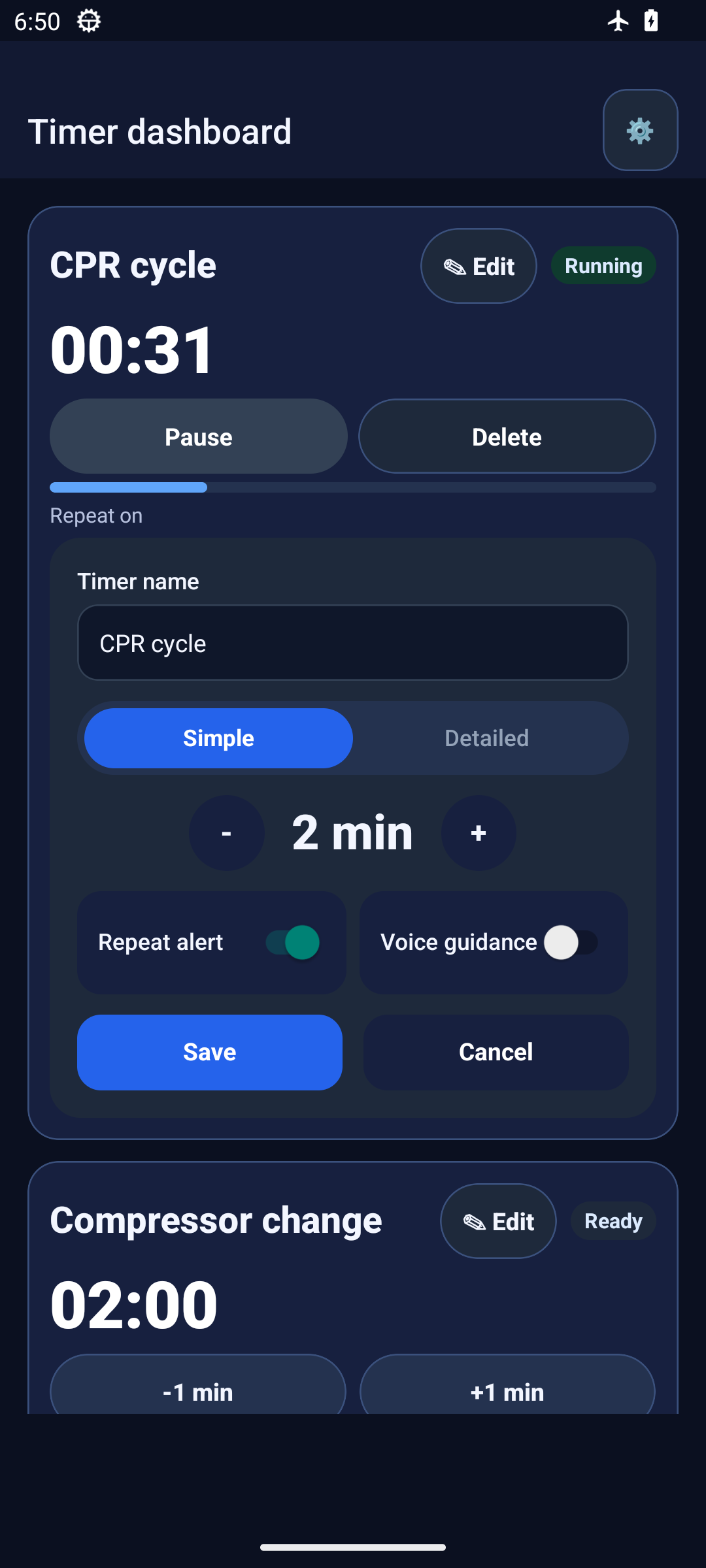
Set names and durations for up to five timers on the dashboard.
 Code Blue CPR Multi Timer
FASTER WITH PRESETS
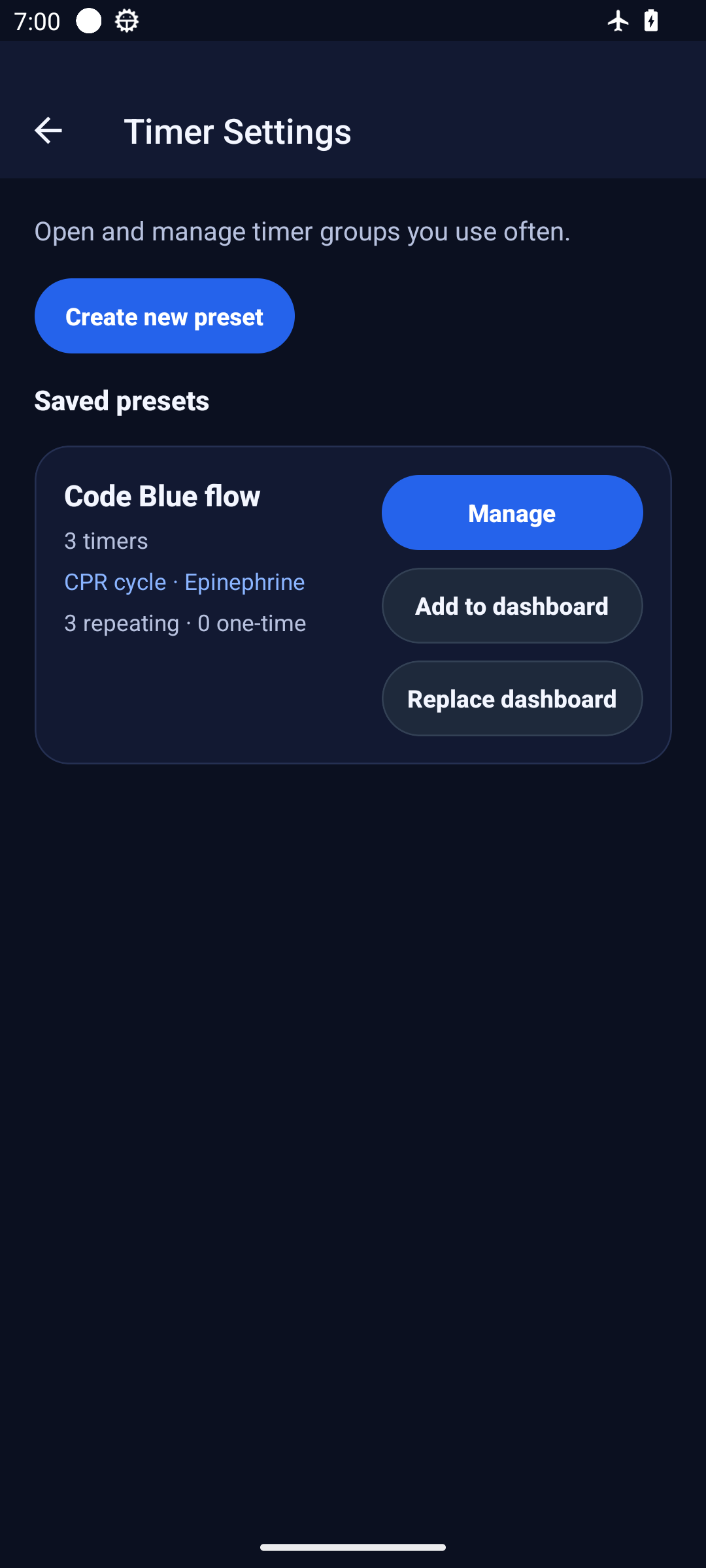
Save names, durations, repeat settings, and voice alert options when you want to reuse a CPR simulation setup. Before the next session, load and review the preset, then add it to the dashboard or replace the current setup. Saving multiple presets is available with Pro.
FOUR STEPS
Set names and durations for up to five timers on the dashboard.
Select Auto repeat and Voice guidance per timer. A repeating timer restarts at its configured interval when time runs out.
Name the prepared dashboard and save it as one preset.
Add the preset to the dashboard or replace the current dashboard setup.
ADD OR REPLACE
Keep the current timers and add the preset’s timers. The dashboard cannot contain more than five timers.
Replace the current dashboard timers with the preset. Check the dashboard and running timers before continuing.
REUSE YOUR PRESET
Start saving and reusing timer combinations in the Android app.